How to Extract Structured Data from Technical Spec Sheets
Why generic PDF extractors fail on technical documents, and how AI-powered extraction turns spec sheet data into structured, usable output.
Every manufacturer has the same problem: critical product data is locked inside PDFs. Tensile strength values, viscosity ratings, temperature ranges, dimensional tolerances, all sitting in spec sheets that were designed to be printed and filed, not queried or compared.
When someone on your team needs to pull that data into a spreadsheet, a PIM system, or a product configurator, they open the PDF and start copying values cell by cell. It takes 30–90 minutes per document. They transpose a decimal. They miss a footnote. They misread a unit. By the time the data reaches its destination, it’s already unreliable.
This guide covers why extracting structured data from technical spec sheets is harder than it looks, what approaches exist, and how to get clean, structured output without the manual rework.
Why Spec Sheet Data Extraction Is Harder Than It Looks
Generic PDF extraction tools (the ones that promise to “convert PDF to Excel”) work reasonably well on invoices, receipts, and forms with clear field labels. They fail on technical spec sheets for three reasons:
1. Tables aren’t always tables
A PDF table is a visual illusion. There’s no <table> tag, no row delimiters, no column definitions. The PDF specification stores text as positioned glyphs on a page. What looks like a table to you is just text fragments at specific X/Y coordinates, with some line-drawing operations that happen to look like grid lines.
Some spec sheets use real table constructs. Others use tab-aligned text. Others use a mix: property names on the left in one column, values on the right in another, with units sometimes in a third column and sometimes appended to the value. A generic tool sees text fragments; it doesn’t know that “45” on one line belongs to “cSt @ 40°C” on the same line, or that “EN ISO 2431” in a third column is the test standard for that value.
2. Values need context to be meaningful
Extracting the number “350” from a PDF is trivial. Understanding that it’s a rated operating pressure measured in bar, tested per ISO 10771-1, with a maximum intermittent value of 400 bar requires understanding the document’s structure and domain. Without that context, the number is noise.
Technical spec sheets encode context through visual proximity, section headings, footnotes, and implied knowledge. “DFT 80–120 μm” means dry film thickness measured in micrometers, but only if you know that DFT is a standard abbreviation in the coatings industry. A general-purpose extraction tool doesn’t carry that knowledge.
3. Symbols and special characters get lost
Spec sheets use symbols extensively: °C, μm, ≥, ≤, ±, Ω, and application-specific marks like filled/empty circles for compliance matrices. Many PDF extractors either drop these entirely, replace them with question marks, or misinterpret them. A compliance matrix where every symbol is wrong isn’t just useless; it’s dangerous.
Common Approaches to Spec Sheet Data Extraction
Manual copy-paste
Still the most common method. Open the PDF, create a spreadsheet, copy values one by one. For a 4-page spec sheet with 20–40 properties, this takes 30–60 minutes. Error rates in manual data entry hover around 1–4% depending on the study (Goldberg et al., 2008 reported 3.6% for structured medical data entry; similar rates apply to any repetitive transcription task). On a document with 30 values, that’s 1–2 errors per document on average.
Generic PDF-to-Excel converters
These tools detect table structures using heuristics: look for grid lines, align text into rows and columns, output a spreadsheet. They handle simple, cleanly formatted tables well. They struggle with merged cells, multi-row headers, nested tables, footnotes that span columns, and the irregular layouts common in technical documentation. You end up spending nearly as much time cleaning the output as you would have spent copying manually.
OCR-based solutions
OCR is necessary for scanned documents, but it adds another failure point. OCR engines occasionally confuse similar characters (“0” vs “O”, “1” vs “l”, “5” vs “S”) and struggle with non-Latin characters, subscripts, and superscripts. In a technical context, where the difference between 1.5 and 15 can be catastrophic, OCR errors are high-stakes.
AI-powered document understanding
The newer approach: use a large language model that can see the document (either the PDF pages as images, or structured text extraction as input) and understand what it’s looking at. Unlike rule-based extractors that try to detect table borders, an AI model can reason about the document’s content: it knows that “Viscosità cinematica” is kinematic viscosity, that “45 cSt” is the value, and that “EN ISO 2431” is the test standard.
This is the approach SpecMake uses. The extraction pipeline reads each page’s layout as well as its text, so table rows and columns stay together and the filled or empty circles of a compliance matrix are kept as printed. It reads the document as a whole, detects the industry domain, and outputs each property it finds, with its value, unit, test standard, and condition, as structured JSON. No table-detection heuristics, just actual document understanding. This extraction stage is the first of five steps in the broader document intelligence pipeline.
What Good Extraction Output Looks Like
Raw text extraction gives you a blob of text. Good structured extraction gives you data you can actually use. Here’s the difference:
Raw text (what generic tools give you)
Kinematic viscosity 45 cSt EN ISO 2431
Flash point >62 °C ASTM D93
Density 1.15 g/cm³ ISO 2811-1
Looks okay? Now imagine 30 properties, some with multi-line values, some with footnotes, some with conditions. The raw text loses all structure. You can’t reliably parse which value belongs to which property, or separate the unit from the test standard.
Structured extraction (what you need)
{
  "property": "Kinematic viscosity",
  "value": "45",
  "unit": "cSt",
  "testStandard": "EN ISO 2431",
  "conditions": "at 23 °C"
}
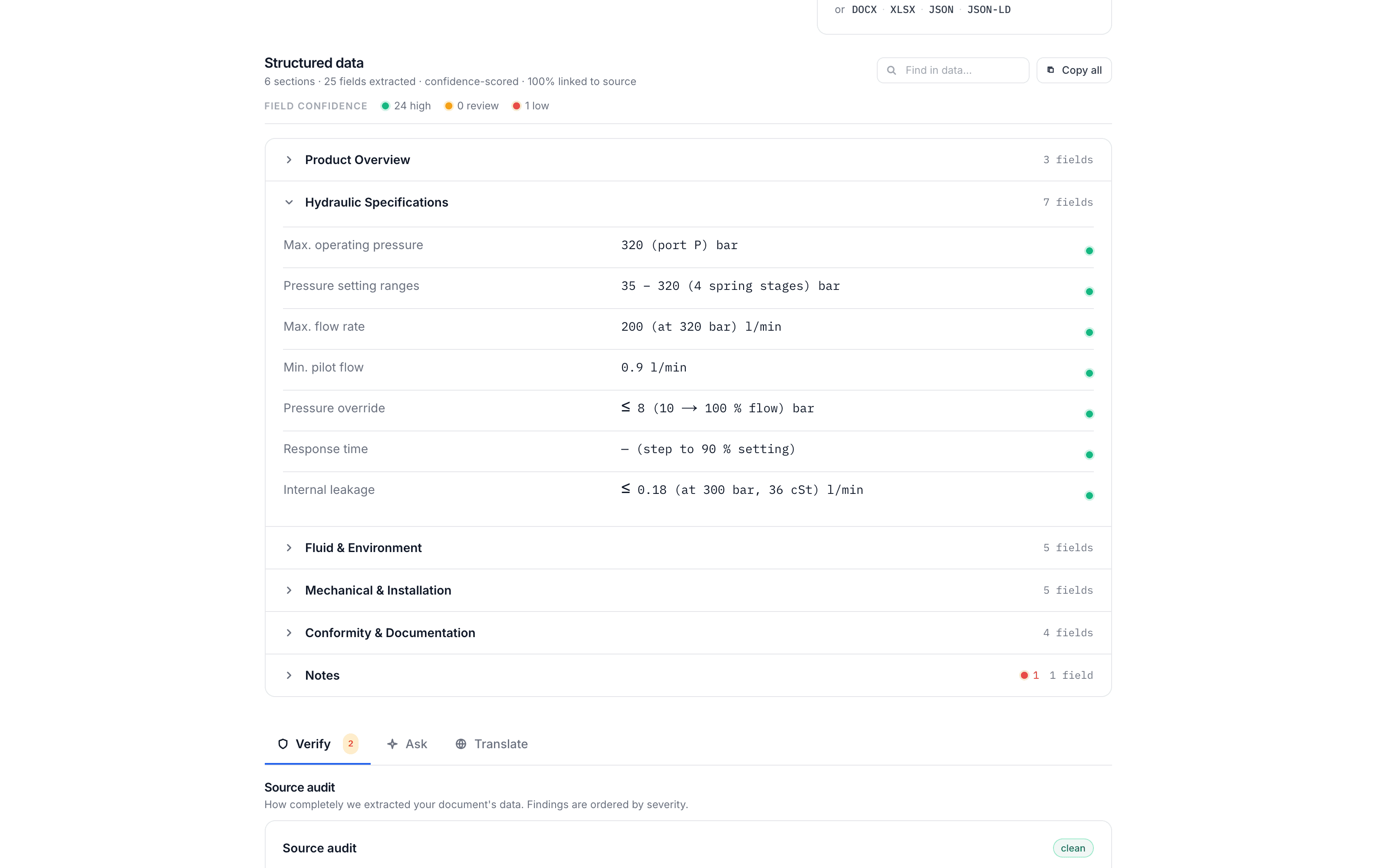
Each field is separate, typed, and queryable. You can import this directly into a spreadsheet, a PIM system, or a product database. No manual parsing required.
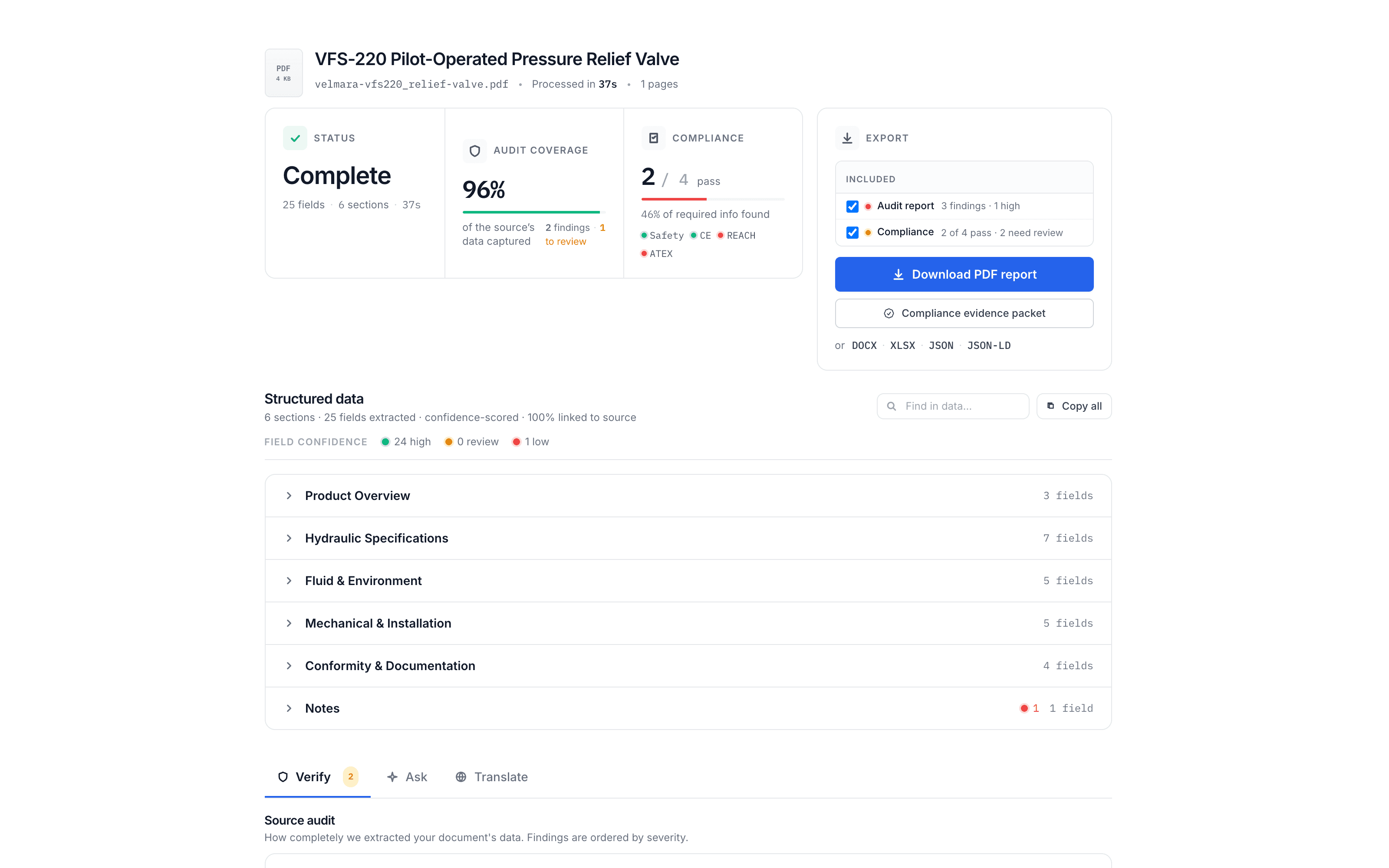
Here is what that looks like in practice: a one-page hydraulic valve datasheet processed by SpecMake (the manufacturer shown is fictional; the extraction is real):
The Audit Step: Why Extraction Alone Isn’t Enough
Even with perfect extraction, the source document itself may have problems. A property name in the header that doesn’t match its value column. A unit mismatch between the table header (°C) and the value (°F). A property mentioned in the product description but missing from the data table.
SpecMake’s quality audit runs automatically after extraction. It compares the structured output against the source document and flags:
- Properties mentioned in the source but not extracted (coverage gaps)
- Values that look inconsistent (unit mismatches, out-of-range values)
- Sections present in the source but absent in the structured output
- Formatting ambiguities that the extraction resolved one way but could be read differently
This matters because extraction is only useful if you can trust the output. If you’re feeding extracted data into a PIM system or using it to generate customer-facing documentation, errors compound downstream. The audit catches them at the source. For more on what the audit checks, see our article on common spec sheet errors.
Export Formats: What You Can Do with Structured Data
Once your spec sheet data is structured, you have options beyond just reading it:
Excel/CSV. The most common destination. Every property becomes a row, every field (value, unit, test standard, conditions) becomes a column. Import directly into your existing workflows or product databases.
JSON. Machine-readable structured data. Ideal for feeding into PIM systems, product configurators, ERP imports, or custom integrations. Each property is a typed object with all metadata preserved.
PDF/DOCX. Reconstructed documents using clean templates. SpecMake can take the structured data and rebuild it into a professional document with consistent formatting, useful for standardizing documentation across product lines or generating multilingual versions.
Translation. Structured data is also the foundation for domain-accurate translation. Because each property and value is already separated and labeled, the translation engine knows to translate “Kinematic viscosity” using the correct industry term (not “cinematic viscosity”) while leaving the value “45 cSt” untouched.
How SpecMake Extracts Structured Data
Here’s the extraction process in practice:
- Upload your spec sheet. PDF or DOCX, any language. Scanned documents supported.
- Layout-aware reading. Table rows and columns stay together, and symbols drawn as shapes rather than text (the filled and empty circles of a compliance matrix) are kept as printed.
- AI reads the document. The model identifies properties, values, units, test standards, conditions, and section structure, and detects the industry domain automatically.
- Audit verifies completeness. An audit compares the structured output against the original, flagging data it finds missed or inconsistent.
- Export. Download as Excel, JSON, PDF, or DOCX. Or continue to translation.
The entire process takes a couple of minutes for a typical 4-page document. You can select zero target languages in the interface to skip translation entirely and just extract + audit + export.
When to Use This vs. Manual Extraction
AI-powered extraction isn’t universally better than manual work. For a single document that you know inside out, opening the PDF and copying a few values might be faster. The advantages show up when:
- You’re processing more than a handful of documents
- The documents come from different suppliers in different formats
- The data needs to be consistent (same field names, same units, same structure)
- You need an audit trail of what was extracted and what was flagged
- You’re populating a system (PIM, ERP, product database) that requires structured input
- The documents are in languages your team doesn’t read
In these scenarios, automated extraction pays for itself on the first batch. Not just in time saved, but in errors prevented.